10 Meta Muse use cases (with prompts and connector combos that actually work)
The 10 most useful things to do with Meta's Muse AI agent: morning briefs, inbox triage, reservations, shopping, budgets, travel, fitness, work reports and more, with copy-paste prompts, the connectors each needs and token-saving tips.
Most people open Meta's Muse, ask it a question like a chatbot, and miss the point. Muse is an agent: its value is in the tasks it runs for you, often on a schedule and across several connected apps at once.
This guide collects the 10 Muse use cases people search for and use most, from the daily morning brief to shopping, budgets and work reports. For each one you get a copy-paste prompt, the connectors it needs, and how to keep it safe and cheap on tokens.
New to Muse? Sign up at muse.ai/join and redeem referral code in Settings → General → Redeem invite code within 48 hours to get 1 billion free Muse tokens, plenty to try every use case below. (It's my code; we both get the same bonus.)
How Muse use cases work
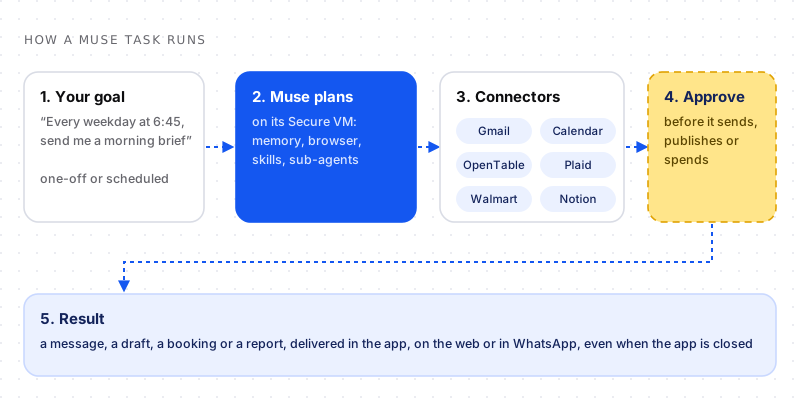
Every use case follows the same loop: goal, plan, connectors, approval, result.
Every good Muse task has four ingredients:
- A goal, not a question: "keep my inbox under control", not "what's in my inbox?"
- The right connectors: Gmail, Google Calendar, Outlook, OpenTable, Plaid, retailers like Walmart and Best Buy, Peloton, Notion, GitHub and more. Where there's no connector, Muse can use its own browser.
- A schedule when the job repeats: Settings → Scheduled Tasks lets Muse run on a schedule and notify you, even with the app closed.
- An approval rule: Muse asks before sending, publishing or spending, and you can make your prompts stricter ("draft only, never send").
1. Morning brief (Gmail + Google Calendar + web)
The most popular Muse use case by far: one message every morning with everything you need to know.
Connectors: Gmail or Outlook, Google Calendar, the web (weather and news).
Every weekday at 6:45 AM, send me a morning brief:
- today's calendar events with travel time between them
- emails from the last 12 hours that need a reply from me (max 5)
- weather for my city
- 3 headlines about AI and my industry
Keep it under 150 words. Don't send or archive anything.
Tip: Cap the number of items ("max 5") so the brief stays short and token usage stays low.
2. Inbox triage and draft replies (Gmail / Outlook)
Muse sorts your inbox, flags what's urgent and drafts replies you approve.
Connectors: Gmail or Outlook.
Go through my unread emails from today.
1. Label them: urgent, needs reply, FYI, newsletter.
2. Draft replies for the top 5 that need a reply, in my usual tone.
3. Don't send anything. Show me the drafts and wait for my approval.
Safety: emails are untrusted content. Keep "never send without approval" in the prompt. Our guide to prompt injection explains why.
3. Calendar scheduling and protecting focus time (Google Calendar)
Let Muse find meeting slots, propose times and defend your deep-work hours.
Connectors: Google Calendar (or Outlook), Gmail for sending invites.
Find three 30-minute slots next week for a call with Priya.
Avoid mornings before 10 AM and keep Tuesday and Thursday 2–5 PM free for focus.
Draft the email proposing the times; don't send it until I approve.
Recurring version: "Every Friday at 4 PM, check next week's calendar and warn me about double bookings and days with no breaks."
4. Restaurant reservations (OpenTable)
One of the most satisfying demos: Muse finds and books a table based on your preferences and memory.
Connectors: OpenTable, Google Calendar.
Book a table for 4 this Friday between 7 and 8 PM near my office.
Prefer Italian or Japanese, rated 4.5+, with a vegetarian option.
Check my calendar first, show me the top 3 options and ask before booking.
Muse remembers what you liked, so over time "book my usual" becomes a real prompt.
5. Shopping and price alerts (Walmart, Best Buy + Shop Pay)
Muse can research products, compare prices, watch for drops and check out with supported retailers, including Walmart, Best Buy, Sephora, Wayfair and Gap, with payment through Stripe Link or Shop Pay. Amazon isn't supported: it blocked Muse from shopping on its store.
Connectors: retailer connectors, Stripe Link or Shop Pay, the web.
I want noise-cancelling headphones under $250 for flights.
Compare the top 3 models on battery life, comfort and reviews.
Then check once a day and tell me if any drops 15% or more.
Never buy without my approval.
Tip: price alerts are a perfect scheduled task: a short daily check uses few tokens.
6. Budget check-ins and subscription audit (Plaid)
With the Plaid connector, Muse can read your bank transactions and turn them into simple weekly check-ins.
Connectors: Plaid.
Every Sunday at 7 PM, summarise my spending this week by category,
compare it with my weekly average, and list any new or increased subscriptions.
Suggest one subscription I could cancel. Don't move money or cancel anything.
Safety: banking is a high-stakes connector. Start read-only and keep "don't move money" in every finance prompt. Review what Muse has access to in its settings.
7. Trip planning and travel alerts (Calendar + web + Expedia)
Muse plans itineraries, tracks prices and builds day-by-day schedules around your calendar. Meta has said Expedia support is coming; until then Muse uses its browser.
Connectors: Google Calendar, Gmail (booking confirmations), the web.
Plan a 4-day trip to Lisbon in March for two people, mid-range budget.
Use my calendar to pick dates, suggest flights and 2 hotel options,
and build a day-by-day plan with one food recommendation per day.
Then watch the flight price daily and alert me if it drops.
Bonus: forward your booking emails and ask Muse to "collect all my trip confirmations into one itinerary and remind me 24 hours before each check-in".
8. Fitness and health summaries (Peloton, Withings, Function Health)
Muse can pull your workouts, sleep and health metrics into one weekly view and keep you on track.
Connectors: Peloton, Withings, Function Health, Google Calendar.
Every Monday at 8 AM, summarise last week's workouts, sleep and weight trend.
Compare with my goal of 4 workouts a week and suggest this week's schedule,
then add the workouts to my calendar as tentative events.
Note: health connectors mostly read data. Muse isn't a doctor: use it for tracking and planning, not medical advice.
9. Work reports (Notion, GitHub, Google Docs, Box)
For work, Muse can turn scattered updates into a weekly report: what shipped, what's blocked and what's next.
Connectors: Notion, GitHub, Google Docs, Box, Gmail. On the Mac, Muse can also work inside apps like Mail, Calendar and Notes with per-app permission.
Every Friday at 3 PM, write my weekly status report:
- merged pull requests and open reviews from GitHub
- updated pages in our Notion "Projects" space
- decisions from this week's emails
Format: Shipped / In progress / Blocked / Next week. Save it as a Google Doc.
Tip: heavy work tasks are where the Power ($20/month, 500 million tokens a week) or Maximum ($100/month, 3 billion a week) plans make sense. Try them first on your referral bonus.
10. Research digests and learning (web + email)
Muse can follow topics for you and deliver a short digest, with sources, on a schedule.
Connectors: the web, Gmail (newsletters), Spotify (for podcast follow-ups).
Every Sunday at noon, send me a digest of the week's most important news
about AI agents: 5 items, one sentence each, with links.
Skip anything I've already seen in my newsletters this week.
Swap the topic for anything: new game or book releases, competitor launches, job postings or research papers.
Best Muse connector combos
| Combo | What it unlocks |
|---|---|
| Gmail + Google Calendar | Morning briefs, scheduling, follow-up reminders |
| OpenTable + Calendar | Reservations that fit your schedule |
| Retailers + Shop Pay or Stripe Link | Price tracking and approved checkout |
| Plaid + Calendar | Bill reminders and weekly spending check-ins |
| Peloton + Withings + Calendar | Training plans scheduled around your week |
| Notion + GitHub + Google Docs | Automatic weekly status reports |
| Gmail + web | Travel itineraries and research digests |
How to write better Muse prompts
- State the outcome and the format: "a 5-bullet summary under 120 words".
- Set limits: number of items, price ceilings, time windows.
- Say what not to do: "don't send", "don't buy", "don't move money".
- Make it recurring when you'd ask the same thing twice: use Scheduled Tasks.
- Let memory work: tell Muse your preferences once ("I'm vegetarian", "I fly aisle seats") instead of repeating them.
How to save Muse tokens
Every page Muse reads and every step it takes uses Muse tokens, so:
- Keep briefs short and cap the number of items.
- Schedule less often when daily isn't needed (weekly digests instead of daily).
- Narrow searches: "3 options rated 4.5+" beats "find restaurants".
- Start with the bonus: redeem a referral code for 1 billion free tokens before deciding on a paid plan.
For the full breakdown of plans, connectors, safety and refunds, read the complete Muse AI referral code guide.
Frequently asked questions
What can Meta Muse do?
Meta Muse can run tasks for you across connected apps and the web: daily morning briefs, inbox triage and draft replies, calendar scheduling, restaurant reservations, shopping research and price alerts, budget check-ins, trip planning, fitness summaries, work reports and research digests, including on a schedule while the app is closed.
What are the best Muse use cases?
The most useful Muse use cases are a scheduled morning brief, inbox triage with draft replies, calendar scheduling, OpenTable reservations, price alerts with supported retailers, weekly budget check-ins with Plaid, and weekly work reports from Notion and GitHub.
Which apps does Muse connect to?
Muse connects to Gmail, Google Calendar, Outlook, Google Docs, Notion, GitHub, Box, Plaid, OpenTable, Instacart, Peloton, Withings, Function Health, Spotify, Meta's own apps and retailers such as Walmart, Best Buy, Sephora, Wayfair and Gap. It can use its own browser for services without a connector.
How do I schedule tasks in Muse?
Ask Muse to do something on a schedule in your prompt ("every weekday at 6:45 AM…") or manage recurring jobs in Settings → Scheduled Tasks. Scheduled tasks run on Muse's cloud computer and notify you even when the app is closed.
Can Muse send emails or buy things on its own?
Muse asks for your approval before actions that send, publish or spend money. You can make this stricter by adding rules like "draft only, never send" or "never buy without my approval" to your prompts.
Is Muse good for work?
Yes, especially for reports and coordination. With Notion, GitHub, Google Docs and Box connectors, Muse can compile weekly status reports, track open reviews and summarise decisions. On the Mac it can also work inside native apps like Mail, Calendar and Notes.
How many tokens do Muse tasks use?
It depends on how much Muse reads and how many steps it takes. Short scheduled briefs use little; long research or shopping comparisons use more. Keeping outputs short, capping items and scheduling less often all reduce token use.
How do I get free Muse tokens?
Redeem a referral code within 48 hours of signing up. With code , entered in Settings → General → Redeem invite code, both you and the referrer receive 1 billion Muse tokens.


Comments